

 Platform
 W&B Models
 W&B Weave
 W&B Inference
 W&B Training
 Release Notes
LLM Evaluation Jobs is in Preview for W&B Multi-tenant Cloud. Compute is free during the preview period. Learn more
事前準備
- LLM Evaluation Jobs の 要件と制限事項 を確認してください。
- 特定のベンチマークを実行するには、チーム管理者が チームスコープのシークレット として必要な APIキー を追加する必要があります。チームメンバー は、評価ジョブの設定時にそのシークレットを指定できます。要件については、Evaluation model catalog を参照してください。
- OpenAPI APIキー: スコアリングに OpenAI モデルを使用するベンチマークで使用されます。ベンチマークを選択した後に Scorer API key フィールドが表示される場合に必要です。シークレット名は
OPENAI_API_KEYである必要があります。 - Hugging Face ユーザーアクセス件トークン:
lingolyやlingoly2など、ゲート(承認制)付きの Hugging Face データセットへのアクセスが必要な特定のベンチマークで必要です。ベンチマークを選択した後に Hugging Face Token フィールドが表示される場合に必要です。この APIキー は、関連するデータセットへのアクセス権を持っている必要があります。詳細は、Hugging Face のドキュメント User access tokens および accessing gated datasets を参照してください。
- OpenAPI APIキー: スコアリングに OpenAI モデルを使用するベンチマークで使用されます。ベンチマークを選択した後に Scorer API key フィールドが表示される場合に必要です。シークレット名は
- 評価結果を保存するための新しい W&B Projects を作成します。左側のナビゲーションから Create new project をクリックします。
- モデルを VLLM 互換フォーマットでパッケージ化し、W&B Models の Artifacts として保存します。これ以外のタイプの Artifacts でベンチマークを試みると失敗します。一つの方法として、このページの最後にある 例:モデルの準備 を参照してください。
- 各ベンチマークのドキュメントを確認して、その 仕組み と特定の要件を理解してください。利便性のため、Available evaluation benchmarks リファレンスに関連リンクが含まれています。
モデルを評価する
以下の手順に従って、評価ジョブをセットアップし、ローンチします。- W&B にログインし、左側のナビゲーションで Launch をクリックします。LLM Evaluation Jobs ページが表示されます。
- Evaluate model checkpoint をクリックして、評価ジョブをセットアップします。
- 評価結果を保存する送信先 Projects を選択します。
- Model artifact セクションで、評価する準備済みモデルの Projects、Artifact、および バージョン を指定します。
- Evaluations をクリックし、最大 4 つのベンチマークを選択します。
- スコアリングに OpenAI モデルを使用するベンチマークを選択した場合、Scorer API key フィールドが表示されます。それをクリックし、
OPENAI_API_KEYシークレットを選択します。利便性のため、チーム管理者はこのドロワーから Create secret をクリックしてシークレットを作成することもできます。 - Hugging Face のゲート付きデータセットへのアクセスが必要なベンチマークを選択した場合、Hugging Face token フィールドが表示されます。関連するデータセットへのアクセスをリクエスト した後、Hugging Face ユーザーアクセス件トークンを含むシークレットを選択します。
- オプションで、Sample limit に正の整数を設定して、評価するベンチマークサンプルの最大数を制限できます。指定しない場合は、タスク内のすべてのサンプルが含まれます。
- リーダーボードを自動的に作成するには、Publish results to leaderboard をクリックします。リーダーボードは、Workspace パネルにすべての評価をまとめて表示し、Reports で共有することもできます。
- Launch をクリックして評価ジョブをローンチします。
- ページ上部の円形の矢印アイコンをクリックして、最近の run モーダルを開きます。評価ジョブは他の最近の Runs と共に表示されます。完了した run の名前をクリックしてシングル run ビューで開くか、Leaderboard リンクをクリックしてリーダーボードを直接開きます。詳細は 結果を表示する を参照してください。

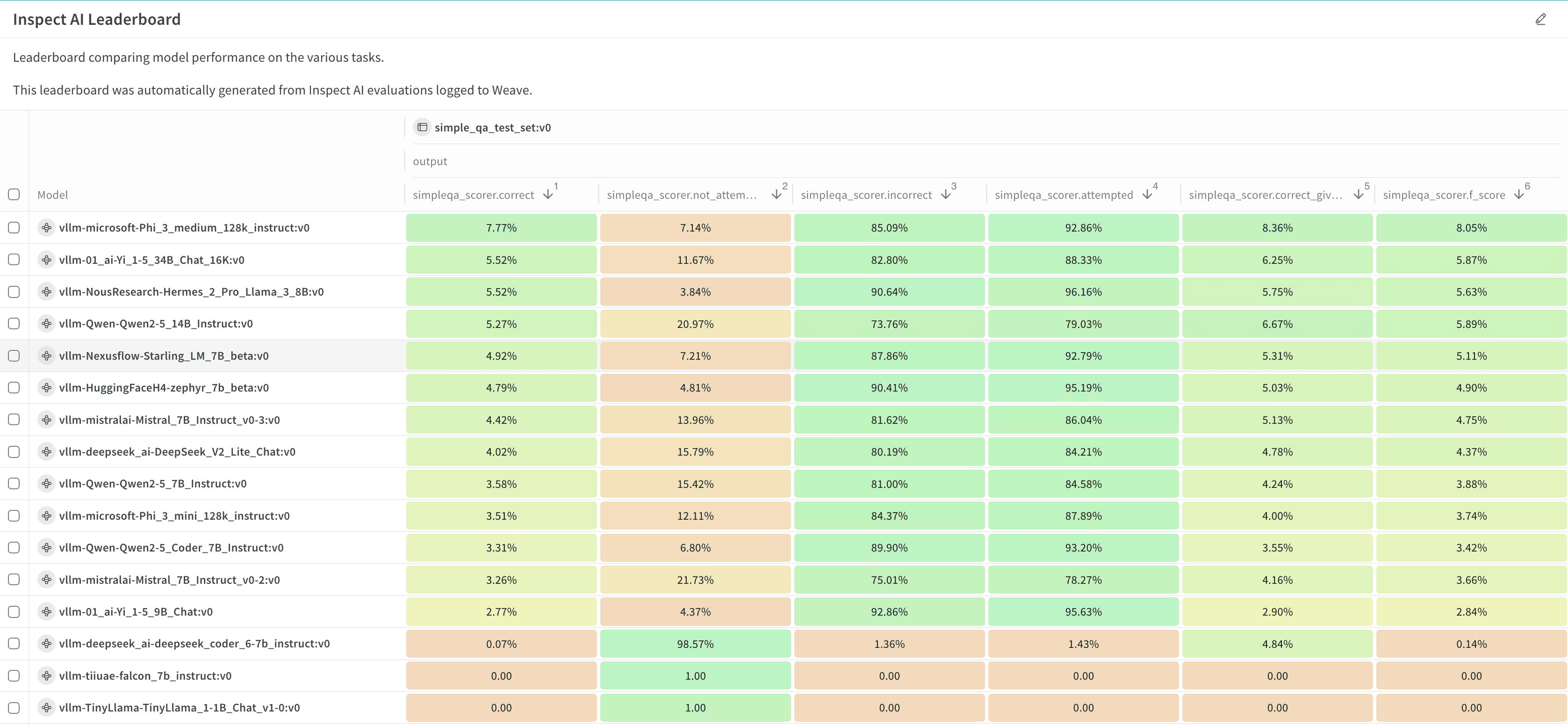
Review evaluation results
Review your evaluation job results in W&B Models in the destination project’s workspace.- Click the circular arrow icon at the top of the page to open the recent run modal, where evaluation jobs appear with other runs in the project. If the evaluation job has a leaderboard, click Leaderboard to open the leaderboard in full screen, or click a run name to open it in the project in single-run view.
- View the evaluation job’s traces in the Evaluations section of a workspace or in the Traces tab of the Weave sidebar panel.
- Click the Overview tab to view detailed information about the evaluation job, including its configuration and summary metrics.
- Click the Logs tab to view, search, or download the evaluation job’s debug logs.
- Click the Files tab to browse, view, or download the evaluation job’s files, including code, log, configuration, and other output files.
Customize a leaderboard
The leaderboard shows results for all evaluation jobs sent to a given project, with one row per benchmark per evaluation job. Columns display details like the trace, input values, and output values for the evaluation job. For more information about leaderboards, see Leaderboards in Weave.- By default, all evaluation jobs are displayed. Filter or search for an evaluation job using the run selector at the left.
- By default, evaluation jobs are ungrouped. To group by one or more columns, click the Group icon. You can show or hide a group, or expand a group to view its runs.
- By default, all operations are displayed. To display only a single operation, click All ops and select an operation.
- To sort by a column, click the column heading. To customize the display of columns, click Columns.
- By default, headers are organized in a single level. You can increase the header depth to organize related headers together.
- Select or deselect individual columns to show or hide them, or show or hide all columns with a click.
- Pin columns to display them before unpinned columns.
Export a leaderboard
To export a leaderboard:- Click the download icon, located near the Columns button.
- To optimize the export size, only the trace roots are exported by default. To export full traces, turn off Trace roots only.
- To optimize the export size, feedback and costs are not exported by default. To include them in the export, toggle Feedback or Costs.
- By default, the export is in JSONL format. To customize the format, click Export to file and select a format.
- To export the leaderboard in your browser, click Export.
- To export the leaderboard programmatically, select Python or cURL, then click Copy and run the script or command.
Re-run an evaluation job
Depending on your situation, there are multiple ways to re-run an evaluation job or view its configuration.- To re-run the last evaluation job again, follow the steps in Evaluate your model. Select the destination project, then the model artifact details and the selected benchmarks you selected last time are populated automatically. Optionally, make adjustments, then launch the evaluation job.
- To re-run an evaluation job from the project’s Runs tab or run selector, hover over the run name and click the play icon. The job configuration drawer displays with the settings pre-populated. Optionally adjust the settings, then click Launch.
- To re-run an evaluation job from a different project, import its configuration:
- Follow the steps in Evaluate your model. After you select the destination project, click Import configuration.
- Select the project that contains the evaluation job to import, then select the evaluation job run. The job configuration drawer displays with the settings pre-populated.
- Optionally adjust the configuration.
- Click Launch.
Export an evaluation job configuration
Export an evaluation job’s configuration from the run’s Files tab.- Open the run in single-run view.
- Click the Files tab.
- Click the download button next to
config.yamlto download it locally.